# CircleCI
## What is CircleCI
CircleCI is a **CI/CD (Continuous Integration/Continuous Deployment)** platform that automates the process of building, testing, and deploying software applications. It helps developers integrate code frequently, ensuring that new code works seamlessly with existing code, while also enabling fast and reliable application delivery, while its primary purpose is to automate **building** and **testing** applications, it also supports **deployment** as part of its pipelines.
***
## How CircleCI works
1. **Integration with Your Code Repository**
* CircleCI connects to your GitHub, Gitlab, or Bitbucket
* It triggers Pipeline when new event happen to your Repo (Push, Pull request, and so on...)
2. **Configuration File**
* define `.circleci` folder at the root of your project folder, And then create file named `config.yml`
3. **Pipeline Execution**
* represents the entirety of your configuration
4. **Environment Options**
* CircleCI runs jobs inside containers, and VMs depending on your configurations
* You can define the environment needed for your application (e.g., specific programming language, database, or tools).
5. **Parallelism and Caching**
* CircleCI supports running multiple jobs in parallel to speed up the pipeline.
* It also caches dependencies to avoid downloading or rebuilding them repeatedly (make pipeline faster every time).
6. **Reusable Configurations**
* Using **Orbs** (predefined configurations), you can easily reuse common CI/CD tasks across multiple projects.
***
## CircleCI configuration
* [**Pipeline**](#pipeline): Represents the entirety of your configuration.
* [**Workflows**](#workflows): Responsible for orchestrating multiple *jobs*.
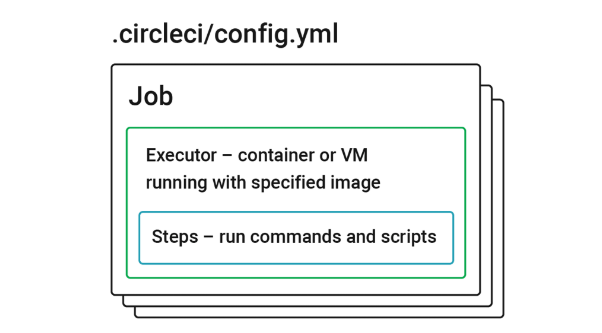
* [**Jobs**](#jobs): Responsible for running a series of *steps* that perform commands.
* [**Steps**](#steps): Run commands and shell scripts to do the work required for your project.
***
### Pipeline
Pipeline is the whole process of workflows, We could say it is the entire YAML file
***
### Workflows
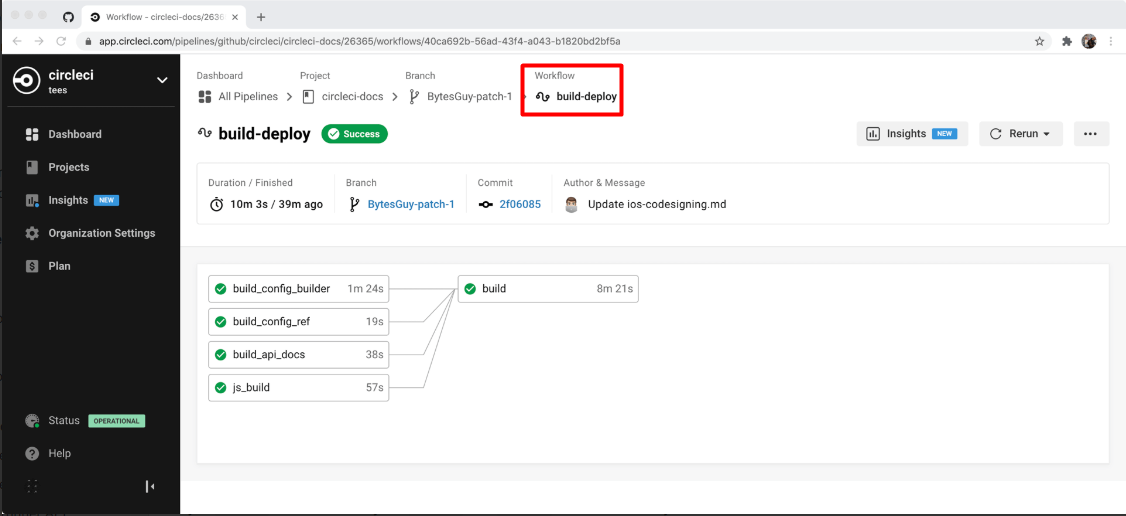
Workflows responsible for orchestrate jobs, A workflow lists jobs with correct order to run.
Workflow
Workflow has several types of order
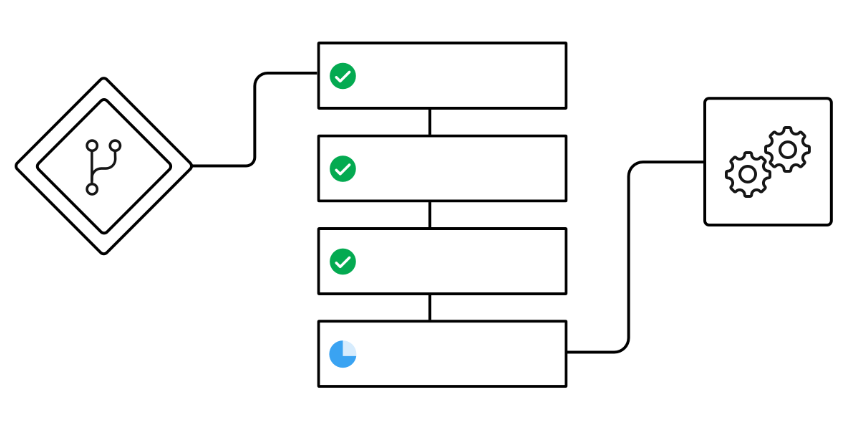
* #### Sequential job execution
In this type, your just lists correct order of jobs
```yaml
workflows:
build-test-and-deploy:
jobs:
- build
- test1:
requires:
- build
- test2:
requires:
- test1
- deploy:
requires:
- test2
```
Sequential job diagram
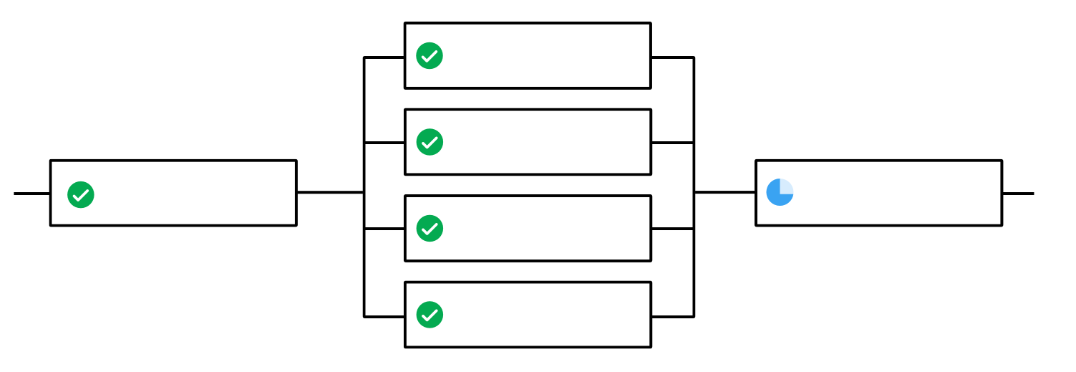
* #### Fan-out/fan-in workflow
in this type you run multiple jobs in parallel if specific jobs successes
```yaml
workflows:
build_accept_deploy:
jobs:
- build
- acceptance_test_1:
requires:
- build
- acceptance_test_2:
requires:
- build
- acceptance_test_3:
requires:
- build
- acceptance_test_4:
requires:
- build
- deploy:
requires:
- acceptance_test_1
- acceptance_test_2
- acceptance_test_3
- acceptance_test_4
```
Fan out/In diagram
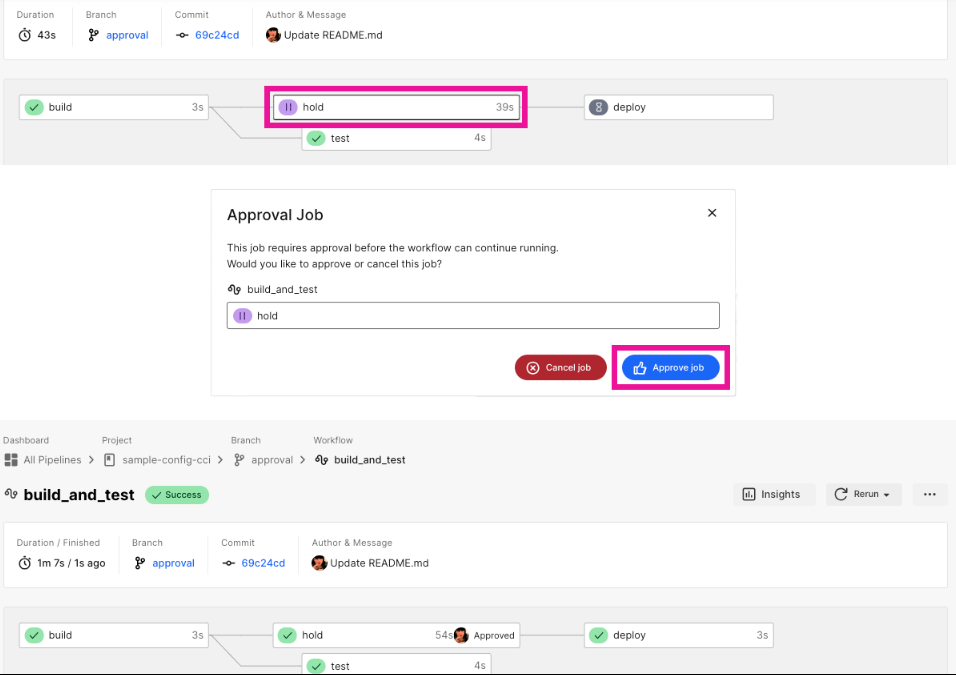
* Hold a workflow for a manual approve
an approval job to configure a workflow to wait for a manual approval
```yaml
workflows:
version: 2
deploy-workflow:
jobs:
- build
- test
- hold: # Approval job
type: approval
requires:
- test
- deploy:
requires:
- hold
```
note: you could name Approval job to (hold, pause, and wait)
Approval Job
***
### Jobs
Jobs are the building blocks of your configuration. Jobs are collections of steps, which runs executable commands/scripts, in Each job you must declare an executer that is either a docker or machine (Linux, windows, macOS)
Job Format
```yaml
build2:
machine: # Specifies a machine image that uses
# an Ubuntu version 22.04 image
image: ubuntu-2204:2024.01.2
steps:
- checkout
```
***
### Steps
A Collection of executable commands required to complete your job
```yaml
version: 2.1
jobs:
build:
docker:
- image: cimg/base:2024.02
steps:
- checkout # Special step to checkout your source code
- run: # Run step to execute commands, see
# circleci.com/docs/configuration-reference/#run
name: Running tests
command: make test
# executable command run in
# non-login shell with /bin/bash -eo pipefail option
# by default.
```
like in this Code we have `Checkout` it's first step that get your src code then using `run` to execute commands
***
### Parallelism
If you have Specific job with multiple task take time to execute you can use parallelism so you can use more than one executer to run it in different machine or image in parallel
```yaml
jobs:
build:
docker:
- image: cimg/go:1.18.1
parallelism: 4
resource_class: large
steps:
- run: go list ./... | circleci tests run --command "xargs gotestsum --junitfile junit.xml --format testname --" --split-by=timings --timings-type=name
```
A `resource class` is a configuration option that allows you to control available compute resources (CPU and RAM) for your jobs. When you specify an execution environment for a job, a default resource class value for the environment will be set, *unless* you define the resource class in your configuration. It is best practice to define the resource class, as opposed to relying on a default.
## [Reference](https://circleci.com/docs/concepts/#projects)